febrero 18, 2026

Weeks 23 & 24: Function COUNTIF() – Conditional Counting

CLASS OBJECTIVE

Learn how to use the COUNTIF() function to count cells that meet a specific condition and apply it to analyze simple data in spreadsheets.
Discover How to Enhance Your COUNTIF And Excel

🗓  CLASS AGENDA


💬  Introduction

“Imagine you have a list of grades and you want to know how many students passed.

Instead of counting one by one, the spreadsheet can count only the ones you choose.”


1️⃣  Short Review

Students recall:

  • What a function is

  • What a range is (A1:A10)

  • What counting functions do (COUNT, COUNTA, COUNTBLANK)


2️⃣  Explanation: What is COUNTIF()?


COUNTIF() counts cells that meet a specific condition.


📌 Structure:

=COUNTIF(range, criteria)

  • Range → Where we look

  • Criteria → What we are looking for


💡 Simple definition:

“COUNTIF counts how many cells match a rule.”


3️⃣  Examples

🔹 Count how many students passed:

=COUNTIF(A1:A10, "Passed")

🔹 Count how many grades are greater than 70:

=COUNTIF(A1:A10, ">70")

🔹 Count how many times the word “Yes” appears:

=COUNTIF(B1:B20, "Yes")


Something to keep in mind :

  • Text criteria must go inside quotation marks

  • Numbers with symbols also use quotes (”>70”)


4️⃣  Demonstration:

Pay a lot of attention while your teacher shows you step by step:

  • Writing the formula

  • Selecting a range

  • Using text criteria

  • Using number conditions (> < =)

  • Changing values and watching results update


Please observe how the result changes automatically.


5️⃣  Activity – “Count With a Rule”

Students will use COUNTIF() in a small table (grades, attendance, preferences) to answer simple questions.


6️⃣ 

Homework

Students will complete a short spreadsheet using COUNTIF() with at least three different criteria.


7️⃣ Take notes in your notebook.


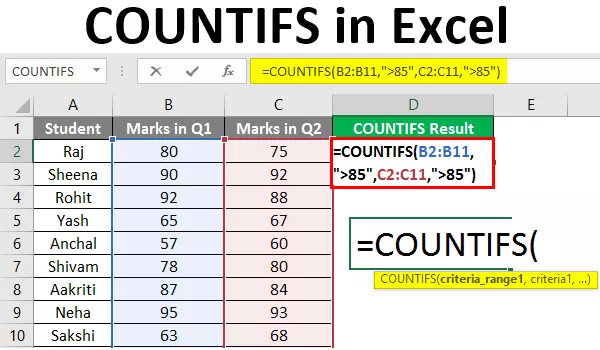
COUNTIFS Function: Mastering Multi-Criteria Counting

📓 NOTES IN YOUR NOTEBOOK


Answer these questions:

  1. What does COUNTIF() do?

  2. What are the two main parts of COUNTIF()?

  3. Why do we use quotation marks in some criteria?

  4. Write one example of COUNTIF() using numbers.

  5. How can COUNTIF() help you as a student?


📌  KEYWORDS

  • Function: A built-in calculation tool

  • Range: A group of cells (A1:A10)

  • Criteria: A condition used in a function

  • COUNT(): Counts numbers

  • COUNTA(): Counts non-empty cells

  • COUNTBLANK(): Counts empty cells

  • COUNTIF(): Counts cells that meet a condition

  • Quotation marks (” “): Used for text or comparison criteria

Weeks 21 and 22: Review & Practice – Spreadsheets (Sheets)

CLASS OBJECTIVE

Review and strengthen the use of basic spreadsheet tools — data types, basic formulas, functions, and counting — to help students feel confident working with spreadsheets independently.


🗓  CLASS AGENDA


💬 Introduction


“We have learned many tools in spreadsheets. Today is about practicing and making everything easier, not harder.”


1️⃣ Short Review


Teacher reviews with students:

  • What a spreadsheet is

  • Basic elements:

    • Cell

    • Row

    • Column

  • Difference between:

    • Data (text, numbers)

    • Formulas


2️⃣ Explanation: What We Know So Far


Teacher briefly reviews:

  • Formulas

    • Start with =

    • Use operators (+ – * /)

  • Functions

    • SUM()

    • AVERAGE()

    • MIN()

    • MAX()

  • Counting functions

    • COUNT()

    • COUNTA()

    • COUNTBLANK()


3️⃣ Demonstration


Teacher opens a simple spreadsheet and demonstrates:

  • Writing a basic formula

  • Using one function (SUM or AVERAGE)

  • Using one counting function

  • Changing a value and watching the result update


Students observe and ask questions.


4️⃣ Activity – “Practice Makes Easy”

Students will practice with a simple table combining data, formulas, functions, and counting.


5️⃣ Take notes in your notebook.


📓  NOTES IN YOUR NOTEBOOK


Answer these questions:

  1. What is the difference between data and a formula?

  2. What function helps you calculate an average?

  3. When would you use COUNTBLANK()?

  4. Why is it important to review spreadsheets?


📌 

KEYWORDS

  • Spreadsheet: A digital table for organizing data

  • Data: Information written in cells

  • Formula: A calculation that starts with =

  • Function: A built-in calculation

  • COUNT(): Counts numbers

  • COUNTA(): Counts non-empty cells


febrero 04, 2026

Week 20 - Sorting, Filtering & Functions (Applied Together)


CLASS OBJECTIVE

Apply sorting, filtering, and basic functions (SUMA, PROMEDIO, MIN, MAX, COUNT, COUNTA and COUNTBLANK) together to organize and analyze simple data efficiently in a spreadsheet.

🗓 

CLASS AGENDA

💬 Introduction

“Imagine you have a list of grades, expenses, or attendance.

What if you could organize it, see only what you need, and calculate everything automatically?”


1️⃣ Short Review

Students recall:

  • What sorting does (change order).

  • What filtering does (show specific data).

  • What functions do (calculate or count automatically).

Teacher reminds:

📌 Spreadsheets are powerful when you combine tools.


2️⃣ Explanation: Working With Data Step by Step

Teacher explains the correct order:

  1. Organize data (clear table with headers).

  2. Sort data (A–Z, highest to lowest).

  3. Filter data (show only what you need).

  4. Apply functions to analyze results.

Simple examples:

  • Sort grades from highest to lowest.

  • Filter only “Passed” students.

  • Use PROMEDIO() to find average grade.


3️⃣ Demonstration

Teacher shows a simple table (grades, attendance, or expenses) and demonstrates:

  • Turning filters on and off.

  • Sorting numeric and text data.

  • Applying functions after filtering.

  • How results change when data changes.

Students observe how one table gives many answers.


4️⃣ Activity – “From Data to Answers”

Students will organize a table, apply sorting and filters, and use functions to answer simple questions.


5️⃣  Take notes in your notebook.

📓  NOTES IN YOUR NOTEBOOK

Answer these questions:

  1. Why is it important to sort data before analyzing it?

  2. What is the advantage of filtering information?

  3. Which function do you use to calculate an average?

  4. How can these tools help you in real life (school or home)?

📌 

KEYWORDS

  • Sort: Change the order of data.

  • Filter: Show specific information only.

  • Function: A built-in calculation tool.

  • PROMEDIO(): Calculates average.

  • Data analysis: Understanding information using tools.

Header: Title row of a table.