
CLASS OBJECTIVE
Understand and apply Conditional Formatting in spreadsheets to automatically highlight data based on specific conditions.
Students will also learn the basic concept of Data Validation to control the type of information entered in a spreadsheet.
These tools help users identify patterns, reduce errors, and analyze information more efficiently.
CLASS AGENDA
Introduction
Understanding how spreadsheets can automatically highlight important data.
Short Review
Remember what a spreadsheet cell, value, and range are.
Explanation
What Conditional Formatting and Data Validation are and why they are useful.
Demonstration
Creating rules in Google Sheets to automatically highlight data.
Practice Activity
Students apply formatting rules and create controlled input lists.
Homework
Apply conditional formatting and data validation to a small dataset.
1. Introduction
Imagine you have a list of student grades.
Instead of reading every number one by one, a spreadsheet can automatically highlight the most important information, such as:
Grades higher than 70
Grades lower than 60
Students who passed or failed
This is possible thanks to a tool called Conditional Formatting.
2. Short Review
Before learning this topic, remember the following concepts:
Cell: A single space in a spreadsheet where data is written.
Range: A group of cells (example: A1:A10).
Data: Information stored in a spreadsheet (numbers, text, dates).
Spreadsheets allow us not only to store information but also to analyze and organize it visually.
3. Explanation: What is Conditional Formatting?
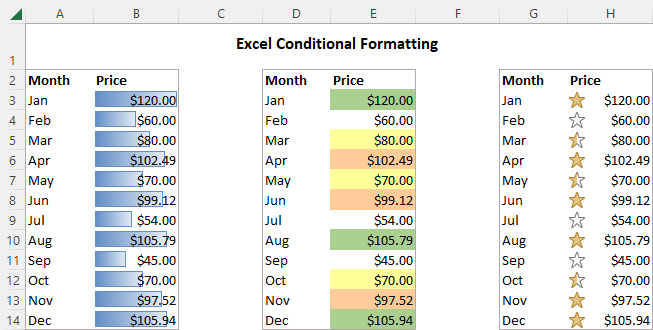
Conditional Formatting is a tool that automatically changes the appearance of cells when they meet a specific rule or condition.
This helps users quickly identify patterns or important values.
Example
A spreadsheet can automatically:
Turn grades green if they are greater than 70
Turn grades red if they are lower than 60
Highlight specific words such as “Approved”
Instead of searching manually, the spreadsheet highlights the data instantly.
Basic Comparison Operators
Conditional formatting rules often use comparison operators.
Operator | Meaning |
|---|---|
> | Greater than |
< | Less than |
= | Equal to |
<> | Not equal to |
These operators allow spreadsheets to evaluate conditions automatically.
4. What is Data Validation?
Data Validation is another spreadsheet tool that controls what type of data can be entered into a cell.
Instead of allowing any value, you can define rules for input.
For example:
Allow only numbers between 0 and 100
Allow only specific words such as Approved / Failed
Create a dropdown list of options
Why is Data Validation useful?
Prevents mistakes in data entry
Keeps information organized
Makes spreadsheets easier to analyze
Conditional Formatting shows patterns, while Data Validation controls the quality of the data.
5. Examples
Highlight numbers greater than 70
Example rule:
Highlight values greater than 70 in a grade column.
Result: High grades become visually easier to identify.
Highlight numbers lower than 60
Example rule:
Highlight values less than 60.
Result: It becomes easier to identify students who may need support.
Highlight specific text
Example rule:
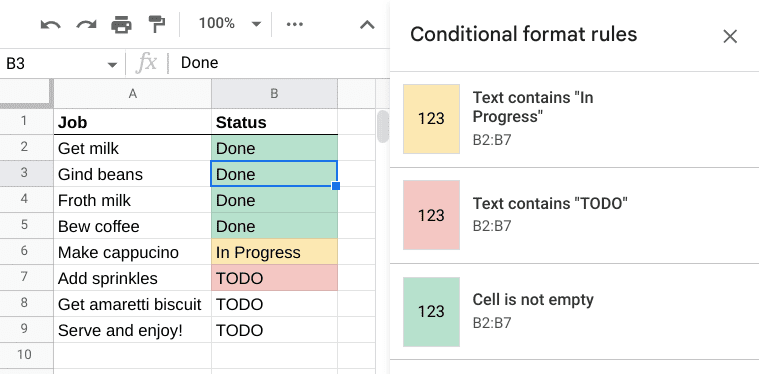
Highlight cells containing the word “Approved”.
Apply a color scale
A color scale automatically changes the color depending on the value.
Example:
Low numbers → red
Medium numbers → yellow
High numbers → green
This helps visualize patterns in large datasets.
6. Demonstration (Google Sheets)
Pay attention while the teacher shows the process step by step.
Students observe:
Selecting a range of cells
Opening Format → Conditional Formatting
Choosing a condition
Selecting a color style
Applying the rule
Examples demonstrated:
Highlight numbers greater than 70
Highlight numbers less than 60
Highlight text equal to “Approved”
Apply a color scale
Students also observe how formatting updates automatically when values change.
7. Practice Activity – “Highlight the Data”
Students will work with a small spreadsheet containing grades or preferences.
They must apply at least three conditional formatting rules, such as:
Highlight grades greater than 80
Highlight grades less than 60
Highlight cells with the word Approved
Students will also create one Data Validation rule, for example:
A dropdown list with options:
Approved / Failed
This ensures consistent data entry.
9. Notes in Your Notebook
Answer the following questions:
What is Conditional Formatting?
What is a rule in conditional formatting?
What are comparison operators used for?
What is Data Validation?
How can these tools help analyze information faster?
KEYWORDS
Conditional Formatting
A spreadsheet tool that changes the appearance of cells based on a rule.
Rule
A condition that determines when formatting is applied.
Condition
A logical test used to evaluate data.
Comparison Operators
Symbols used to compare values (> < = <>).
Data Validation
A tool that restricts the type of data that can be entered into a cell.
Range
A group of cells in a spreadsheet.