
CLASS OBJECTIVE
Review how formulas and functions work in spreadsheets and understand how absolute references ($) allow us to keep certain cells fixed when copying formulas across a table.
Using absolute references helps spreadsheets perform accurate calculations across multiple rows or columns.
CLASS AGENDA
Introduction
Understanding how formulas behave when they are copied.
Short Review
Remembering how formulas, functions, and cell references work.
Explanation
Learning the difference between relative references and absolute references ($).
Demonstration
Observing how absolute references keep values fixed in calculations.
Practice Activity
Students apply formulas and absolute references in a spreadsheet.
Homework
Practice formulas, functions, and absolute references in a small dataset.
1. Introduction
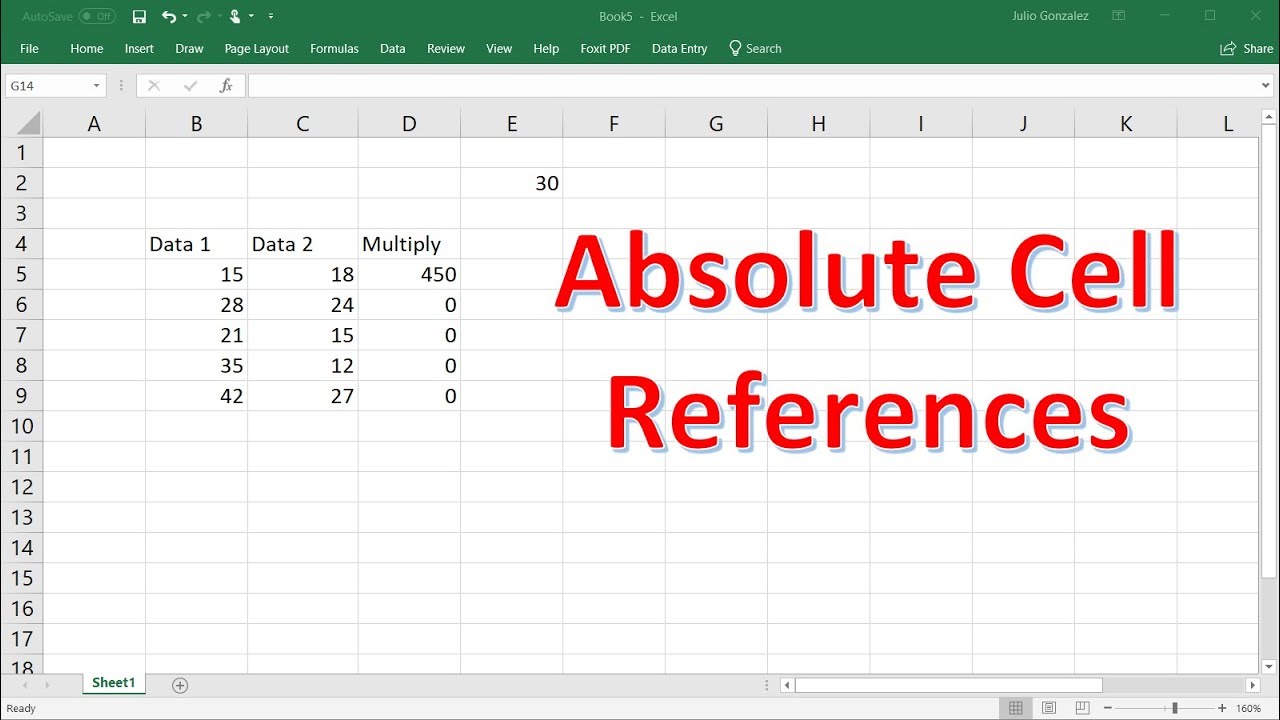
Imagine you are calculating the final price of several products, and each product has the same tax percentage.
You write a formula and copy it down the column.
However, the result becomes incorrect.
Why?
Because spreadsheets normally use relative references, which change automatically when the formula is copied.
To solve this problem, spreadsheets use absolute references.
2. Short Review
Before learning absolute references, remember these key concepts.
Formula
A formula is a calculation written in a spreadsheet.
Example:
=A1+B1This formula adds the values in cells A1 and B1.
Function
A function is a built-in calculation tool that performs a specific operation.
Examples:
=SUM(A1:A5)
=MIN(A1:A5)
=MAX(A1:A5)
=AVERAGE(A1:A5)
=COUNT(A1:A10)
Functions help us perform calculations more efficiently.
Cell Reference
A cell reference tells the spreadsheet which cell contains the data used in a formula.
Example:
A1
B5
C10
These references allow formulas to use values stored in different cells.
3. Relative References
By default, spreadsheets use relative references.
A relative reference changes automatically when a formula is copied.
Example formula:
=A1+B1If the formula is copied downward, it becomes:
=A2+B2
=A3+B3
=A4+B4
The spreadsheet automatically adjusts the references.
This behavior is useful in many situations, but sometimes we need certain cells to remain fixed.
4. Absolute References
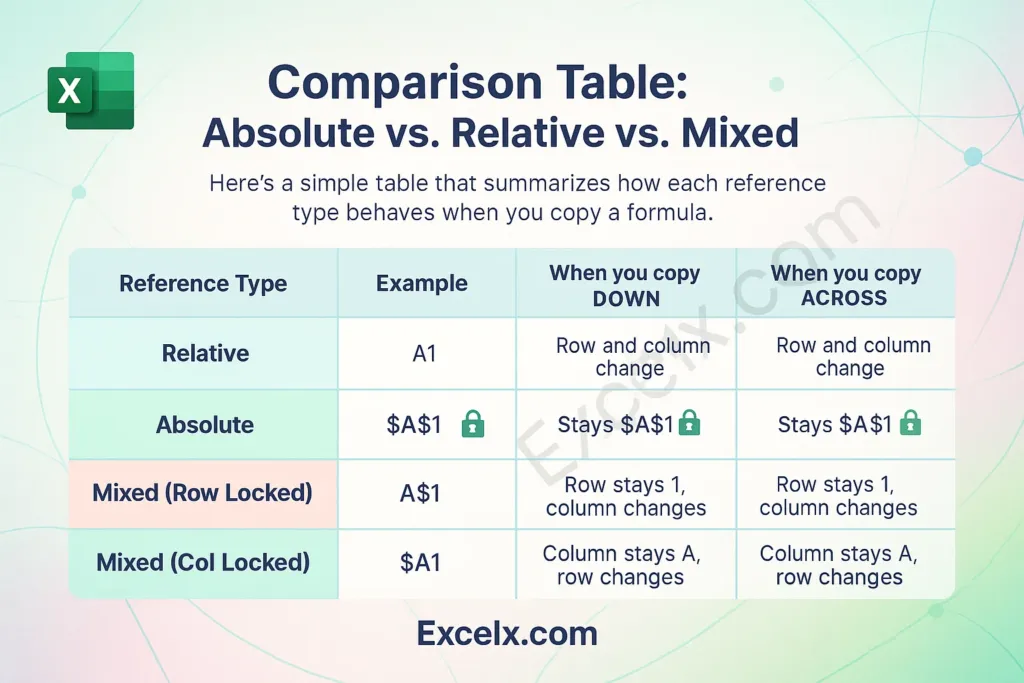
An absolute reference keeps a cell fixed when a formula is copied.
Absolute references use the $ symbol.
Example:
=$A$1This means:
- The column A stays fixed
- The row 1 stays fixed
The reference will not change when copied.
Relative vs Absolute References
Reference Type | Behavior |
|---|---|
Relative reference | Changes when copied |
Absolute reference | Stays fixed when copied |
5. Example Demonstration
The teacher demonstrates a simple table.
Price | Tax | Final Price |
|---|---|---|
100 | 0.16 | ? |
200 | 0.16 | ? |
300 | 0.16 | ? |
We want to calculate the final price including tax.
Example formula:
=A2*$B$1Explanation:
- A2 changes when copied
- $B$1 stays fixed
When the formula is copied down:
=A3*$B$1
=A4*$B$1
The tax value remains the same, so all calculations work correctly.
Students observe how the spreadsheet keeps the tax cell fixed.
6. Quick Review of Functions
The teacher briefly reviews previously learned functions.
Examples:
=SUM(A1:A5)
=MIN(A1:A5)
=MAX(A1:A5)
=AVERAGE(A1:A5)
=COUNT(A1:A10)
These functions also use cell references, which may be:
- Relative
- Absolute
Understanding references helps us build more powerful formulas.
7. Practice Activity
Students will complete a spreadsheet exercise where they:
- Use formulas to calculate totals.
- Copy formulas across multiple rows.
- Apply absolute references ($) to keep specific values fixed.
The activity will help students understand how formulas behave when copied.
KEYWORDS
Formula
A calculation written in a spreadsheet.
Function
A built-in tool that performs a specific calculation.
Cell Reference
The location of a cell used in a formula.
Relative Reference
A reference that changes when a formula is copied.
Absolute Reference
A reference that stays fixed when a formula is copied.
$ Symbol
Used to create absolute references.
Range
A group of cells in a spreadsheet.